Choose other country to get service
Gaming TV Buying Guide 2026
2026-02-25
2026-02-25
Share


A great gaming TV makes movement look clean, keeps controls snappy, and stops screen tearing from ripping across the middle of a match. Get the essentials right and you’ll notice it straight away. Fast shooters feel more responsive. Racing games look smoother through corners. Big single-player titles hold their detail in dark scenes without turning into a muted mess. You’ll also spend less time digging through menus because you’ll know which settings matter and which ones don’t.
What Makes A TV Good For Gaming?
A good gaming TV keeps your inputs feeling immediate and your picture looking stable when the action gets hectic. It’s about a few core features working properly together.
It Responds Fast
When you press a button, the on-screen action should happen without that slight “laggy” feeling. Low input lag plus a proper Game Mode is what delivers that crisp, connected response, especially in shooters, sports games, and anything competitive.
It Stays Smooth In Motion
Smooth gameplay comes from refresh rate and motion handling. If you play at 60fps you’ll still benefit from decent processing, but 120Hz support opens the door to genuinely smoother motion in games that offer high frame-rate modes.
It Prevents Tearing And Stutter
VRR (Variable Refresh Rate) helps keep the image stable when frame rates bounce around. That’s common in open-world games and busy multiplayer scenes. When VRR’s working well, you get fewer visual hiccups and a cleaner, more “locked in” look.
Plug and Play Without Fuss
Gaming setups add up fast: console, PC, soundbar, maybe a second console in the same room. HDMI 2.1 features, enough ports, and eARC for audio can save you from constant cable swapping and settings headaches.
Gaming TV Specs That Matter Most
Input Lag And Game Mode
Input lag is the delay between pressing a button and seeing the result on screen. You feel it most in shooters, sports games, fighters, and anything where timing matters. Look for a dedicated Game Mode because it cuts out heavy processing that can slow things down.
A quick real-world tell is if aiming feels “floaty” or you’re always over-correcting. If you notice this happening the TVs processing may be adding delay. Game Mode usually fixes that in one toggle.
Refresh Rate For Gaming: 60Hz Vs 120Hz Vs 144Hz
Refresh rate is how many times the screen updates per second.
|
|
|
|
|
|
VRR For Gaming (And Why ALLM Helps)
VRR (Variable Refresh Rate) smooths out frame-rate swings. When a game drops from, say, 60fps to the mid-50s during a hectic scene, VRR helps keep the picture stable, with less tearing and less judder. You’ll notice it in open-world games, big boss fights, and busy multiplayer matches.
ALLM (Auto Low Latency Mode) is the convenience feature. It switches the TV into a low-lag mode automatically when your console starts a game, so you’re not hunting through menus.
HDMI 2.1 For PS5 And Xbox Series X
HDMI 2.1 is where the key gaming features live for modern consoles, especially 4K at 120Hz, VRR, and ALLM. Two practical tips save a lot of pain:
- Check how many HDMI ports support the full gaming feature set. Some TVs only offer full support on certain ports.
- If you’re running a soundbar, plan around eARC, so you can keep high-quality audio without sacrificing the console’s best HDMI port.
HDR Gaming And Brightness
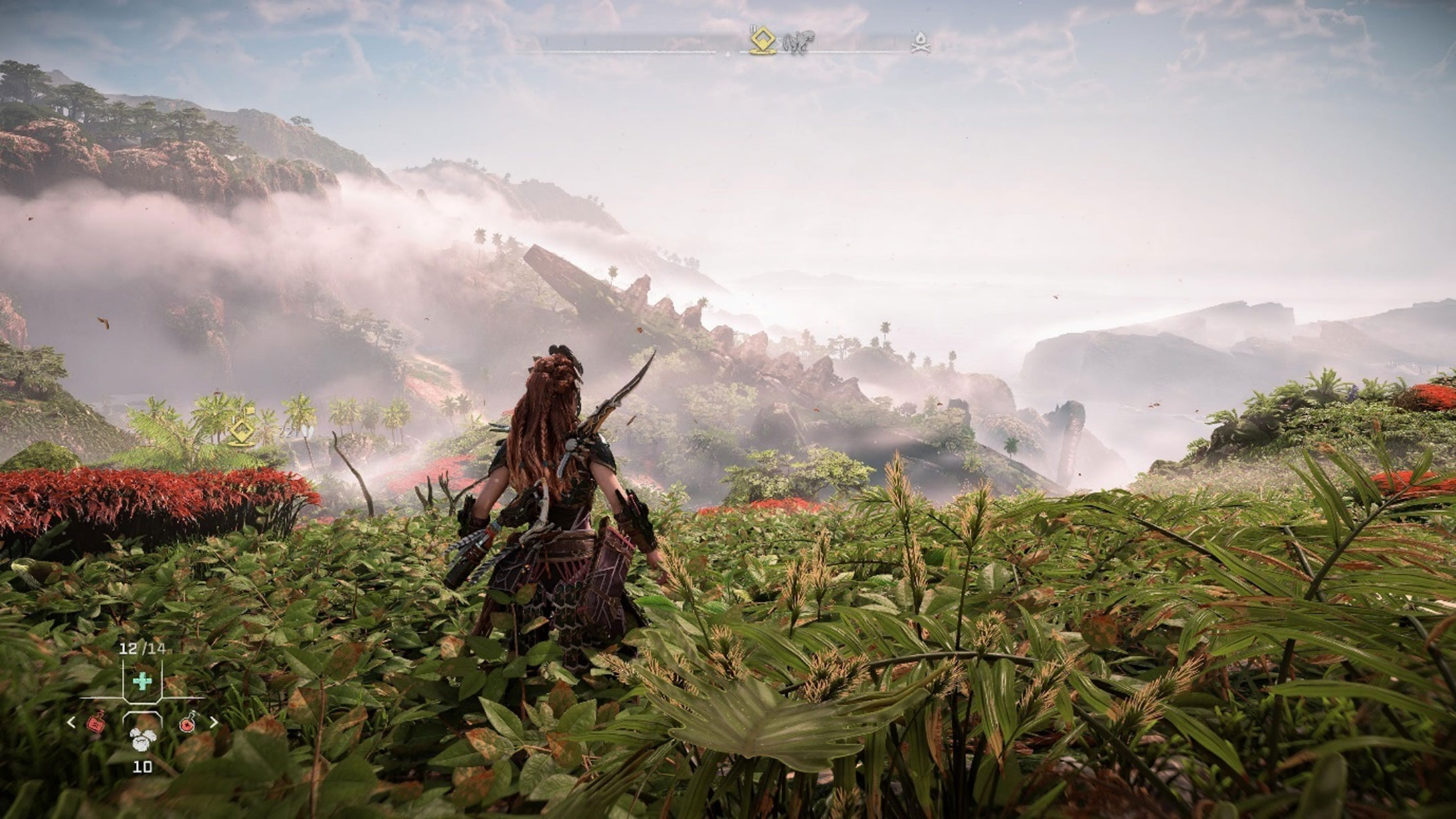
HDR can look incredible in games, but it’s sensitive to setup. In a good HDR game, bright effects (sun glare, sparks, neon, explosions) have real punch, and darker areas keep detail instead of turning into a murky blob.
To get there, you want a TV with strong HDR performance and you’ll want to run the console’s HDR calibration properly. It’s a five-minute job that can make a bigger difference than tweaking random sliders mid-game.
Gaming TV Features That Improve Gameplay
Game Bar And Gaming Tools
A good gaming menu saves time because you can change the stuff that matters without pausing the fun and digging through three layers of settings.
Look for quick access to things like VRR status, frame rate info, and picture presets. Handy extras include shadow detail tweaks for darker maps, an aiming aid overlay for casual play, and a quick switch between console inputs if you’ve got more than one system in the room. These tools make a solid TV easier to live with. They’re a bonus once the core specs are right.
Best TV Settings For Gaming
You don’t need a complicated setup. A few smart defaults get you 90% of the way there.
Start with Game Mode. Then set motion smoothing to low or off for most games, since it can add latency or weird artefacts. Keep sharpness modest so textures don’t look crunchy, and run your console’s HDR calibration once, properly, then leave it alone.
If you bounce between competitive multiplayer and big story games, save two presets:
- One tuned for fast response and clarity (FPS, sports, racers)
- One tuned for richer colour and shadow detail (RPGs, cinematic titles)
That way you’re switching modes, not fiddling with sliders every weekend.
Gaming TV Setup Tips For PS5, Xbox, And PC
Start With The Right HDMI Port
Plug your console or PC into the HDMI port that supports the full gaming feature set (4K 120Hz, VRR, ALLM). Many TVs label these ports, and it’s worth checking before you wall-mount everything.
If you’re using a soundbar, connect it to the TVs eARC port, then keep your best HDMI gaming port free for the console or PC.
Turn On The Core Gaming Toggles
Once the hardware is connected, knock over the basics:
- Enable Game Mode
- Enable VRR on the TV and the console/PC
- Enable 120Hz output where available
- Enable ALLM if the TV supports it
PS5 Setup Tips
- Go to Settings > Screen and Video and make sure 120Hz Output is set to Automatic.
- Set VRR to Automatic if your display supports it.
- Run HDR Calibration properly (once), then leave it alone unless you change rooms or lighting.
Xbox Series X|S Setup Tips
- In TV & display options, set resolution to 4K UHD and refresh rate to 120Hz if supported.
- Under Video modes, enable VRR and ALLM if available.
- Use Calibrate HDR for Games to get cleaner highlights and better shadow detail.
PC Setup Tips
- Confirm the TV is running at the refresh rate you expect in your GPU settings (Windows display settings plus NVIDIA Control Panel or AMD Adrenalin).
- Turn on FreeSync (or G-SYNC if available) when relevant, alongside VRR on the TV.
- If text looks soft, set chroma to 4:4:4 (or the PC mode equivalent) for sharper desktop use.
Fix The Two Most Common Problems
- No 120Hz option showing up: try a different HDMI port, confirm the TVs enhanced HDMI setting is enabled, and use a certified HDMI 2.1 cable.
- Picture looks laggy or weird in motion: confirm Game Mode is on and motion smoothing is off for that input.
Bring Your Games To Life With TCL
When your TV is set up properly, gaming feels sharper and more responsive. Motion stays smooth, controls feel immediate, and you spend more time playing instead of fiddling with menus.
If you’re ready to explore TCL’s gaming-friendly TVs and the latest display tech, these pages are the best place to start:
If you’re comparing models, keep your checklist handy and double-check which HDMI ports support the gaming features you care about. That one detail saves the most headaches later.
Gaming TV FAQ
Do I Need A 120Hz TV For PS5 And Xbox Series X?
If you play competitive shooters, sports titles, or racers that offer 120fps modes, yes, it’s worth it. You’ll see smoother motion and feel more responsive control. If you mostly play slower single-player games locked to 30 or 60fps, 120Hz still helps with motion clarity, but it won’t transform every title.
Is VRR Worth It For Console Gaming?
Yes, especially for open-world games and busy multiplayer matches where frame rate jumps around. VRR helps the picture stay stable, so you notice fewer hiccups and less tearing.
Is 144Hz Better Than 120Hz For Gaming?
For PC gaming, it can be, provided your PC can push those frame rates at the resolution you’re using. For consoles, 120Hz is the practical target, so 144Hz is more of a bonus than a must-have.
How Many HDMI 2.1 Ports Do I Need?
Two is a safe minimum for many households: one for a console and one spare for a second console or a PC. If you’ve got a soundbar, you’ll also want an eARC connection, so check how the ports are arranged on the model you’re considering.
Should HDR Be On Or Off For Gaming?
Keep it on for games that support HDR well, then calibrate it properly in your console settings. If a game’s HDR implementation looks washed out or crushes shadow detail, try the game’s own HDR sliders first before turning HDR off system-wide.
What’s The Best TV Size For Gaming?
It depends on seating distance and the type of games you play. For competitive multiplayer, some people prefer a slightly smaller screen so they can scan the whole image quickly. For story games, a larger screen adds immersion. As a rule, buy the biggest size you can sit far enough from comfortably, then make sure it still delivers the gaming features you want.

Tips

Tips

Sports & Streaming With TCL
2026-09-07
Tips

Tips


What Google TV Brings To TCL Smart TVs
2026-04-15
Tips


The Best Large Screen TCL TVs In 2026
2026-04-01
Tips

Tips


Tips

Tips

Tips

What Size TV Do You Really Need?
2026-02-25
Blog
New Tech

Best TCL TV For Bright Rooms
2026-02-25
Blog
New Tech

Gaming TV Buying Guide 2026
2026-02-25
Blog
New Tech

Tips

Tips

Blog
New Tech

Tips

Tips

Tips

The Ultimate Guide to Air Conditioner Modes
2025-02-26
Tips


Tips

Tips
Tips

Tips

New Tech


New Tech

New Tech

Tips
Tips

Air Conditioner Playbooks

Holiday Season
2023-12-17
Events
Be cool this summer
2023-12-17
New Tech

2023 Black Friday Sales
2023-11-16
Events


Events


The Evolution of TVs: What is a Smart TV?
2023-08-30
Tips


Tips

TCL 2023 TV Product Range Launch
2023-07-25
New Tech

TCL Celebrates New AFL Sponsorship From 2023
2023-07-18
Partnership

MiniLED vs OLED. A comparison
2023-07-11
New Tech

What is Quantam dot technology for Tv's
2023-07-04
New Tech

AFL powered by TCL Electronics
2023-04-13
Partnership


Boxing Day Sales 2022
2022-12-21
Tips

New Tech

Renegades Partner with TCL Electronics
2022-11-29
Events

TV: To Mount or Not to Mount?
2022-11-29
Tips

New Tech

New Tech

New Tech

Looking for a Big Screen TV?
2022-11-08
New Tech

New Tech

New Tech

The C9 Series – TCL's Best 4K TVs
2022-11-01
New Tech

Black Friday Sales Plus Cyber Monday 2022
2022-10-25
Events

Men's T20 Cricket World Cup 2022 Australia
2022-10-25
Events

TCL Sponsors Melbourne Cup 2022
2022-10-18
Events

Is it Time to Upgrade Your TV?
2022-10-04
New Tech

Best Streaming Apps 2022
2022-09-27
New Tech

TCL X9 Series TVs
2022-09-20
New Tech

Events

Men's AFL Grand Final 2022
2022-09-06
Events

IFA

New Tech


2022 TCL TV Range Launch
2022-08-03
New Tech

Google TV vs Android TV
2022-06-06
New Tech

What is Google TV?
2022-06-03
New Tech

MiniLED vs OLED
2022-05-23
New Tech

Watch Australian NRL on Your TCL Television
2022-05-21
Tips

Tips

How to Watch AFL on Your TCL TV
2022-05-14
Tips

TCL Ray Danz Soundbar Reviews
2022-05-10
New Tech

Fridge Buying Guide
2022-05-05
Tips

Tips

Freezer Buying Guide
2022-04-20
Tips

New Tech

Watching Soccer on Your TCL Television
2022-04-11
New Tech

Call of Duty: Vanguard
2022-01-05
New Tech

Soundbar Buying Guide
2021-12-29
Tips

Boxing Day 2021
2021-12-17
Events

The TCL C735 98" TV Overview
2021-12-15
New Tech

New Tech

What is the Ideal TCL TV for You?
2021-12-01
Tips

Smart TV and HD Televisions
2021-11-24
New Tech


TCL Black Friday and Cyber Monday 2021
2021-11-18
Events

TCL's Latest Australian Product Range
2021-11-17
New Tech

Is My TV a Smart TV?
2021-11-03
New Tech

How To Connect A DVD Player To A Television
2021-10-27
New Tech

New Tech

What Is a Mini-LED TV and Do You Need It?
2021-10-06
New Tech

Laser TV: Options, Specifications & Quality
2021-09-29
New Tech

Tips

New Tech

New Tech

New Tech

New Tech

How To Set Up Google Home on TCL TVs
2021-08-30
Tips

New Tech

New Tech

Top Mount Fridge: The Ultimate Buying Guide
2021-08-02
New Tech

Finding the Perfect Bar Fridge
2021-07-26
Tips

Best Budget Sound Bar For Your TV
2021-07-19
Tips

Choosing & Finding Sound Bars For Your TV
2021-07-12
Tips

New Tech

8K TV
2021-06-28
New Tech

Thinking of buying a 4K TV?
2021-06-21
New Tech

Why buy a 75 Inch TV?
2021-06-14
Tips

How to choose the best Smart TV for you
2021-05-31
Tips

Tips

Tips

TV Buying Guide: 6 Things You Need To Know
2021-05-17
Tips

Tips

New Tech

Android or Smart TV - What's the Difference?
2021-03-05
Tips

Top New TV Shows on Stan 2021
2021-02-26
Tips

Australian Sports We Love to Watch
2021-02-19
Tips

Tips

Top 10 Most Expensive TV Shows Ever Made
2021-02-05
Tips


New Tech

Boxing Day Sales in Australia
2020-12-11
Tips

Tips

How to Take Movie Night to the Next Level
2020-11-27
Tips

New Tech

Tips

Black Friday TV Deals
2020-11-06
Tips

Tips

Choosing the Right TCL Soundbar
2020-10-26
Tips

The New TCL X915 8K QLED Android TV
2020-09-15
New Tech

Mounting Your TV: What You Need To Know
2020-08-08
Tips

The New 2020 TCL P715 4K QUHD Android TV
2020-07-24
New Tech

Tips

New Tech

Tips


Tips

Tips

New Tech

How to Successfully Host an AFL Party
2020-03-12
Tips

Product Spotlight: Series X X7 QLED TV AI-IN
2020-02-03
Tips

Tips

Tips

How to Decorate a Room Around Your TV
2019-10-14
Tips

Tips

FIBA Basketball World Cup 2019
2019-08-26
Events

Tips

The Evolution of TV in Australia
2019-07-16
Tips

How to Buy a Premium TV on a Budget
2019-06-26
Tips

New Tech

2019 Q1 Shipment Release
2019-04-17
New Tech

8K TV and the Future
2019-04-01
New Tech

New Tech


New Tech


Events

Great Christmas Tech Gift Ideas From TCL
2018-11-19
Tips

Events

The Melbourne Spring Racing Carnival
2018-10-31
Events

The Perfect Sports and Gaming TV
2018-09-20
Tips

New Tech

Events

What is Chromecast & Why do I Need it?
2018-08-20
Tips

Buying a TV? Which TV Should You Buy?
2018-07-06
Tips


New Tech


Events

QLED vs OLED – What is the difference?
2018-04-10
Tips

Google Assistant & Artificial Intelligence
2018-03-23
New Tech

New Tech

Neymar Appointed TCL Ambassador
2018-02-13
Events

TCL Named CES 2018 Innovation Awards Honoree
2018-01-31
Events

Events

New Tech

Events

New Tech

Tips

Events


Events

TCL Android TV has arrived
2017-06-17
New Tech

5 Reasons Why You Need Netflix
2017-06-08
Tips

5 Reasons Why You Need Smart TV
2017-06-08
Tips

TCL Smart TV & FreeView
2017-06-08
New Tech

Which size TCL TV is best for you?
2017-06-08
Tips

Melbourne Victory partners with TCL
2017-01-17
News

News

Events

News



This site uses cookies to analyse site traffic, improve your experience and personalize ads or other contents. By clicking Accept or continuing to browse the site, you are agree to our use of cookies. See our Cookies Policy here. Learn more